
I Changed My Mind and Bought a Thunderbolt 5 Dock: Lenovo ThinkPad Thunderbolt 5 Smart Dock 7500 Hands-On
My Thunderbolt 4 dock guide ended with a plan to buy Lenovo's Thunderbolt 4 dock. I bought the Thunderbolt 5 version instead. Here is why, what living with it on a Dell laptop is actually like, and the warranty mess it took to get it registered in India.
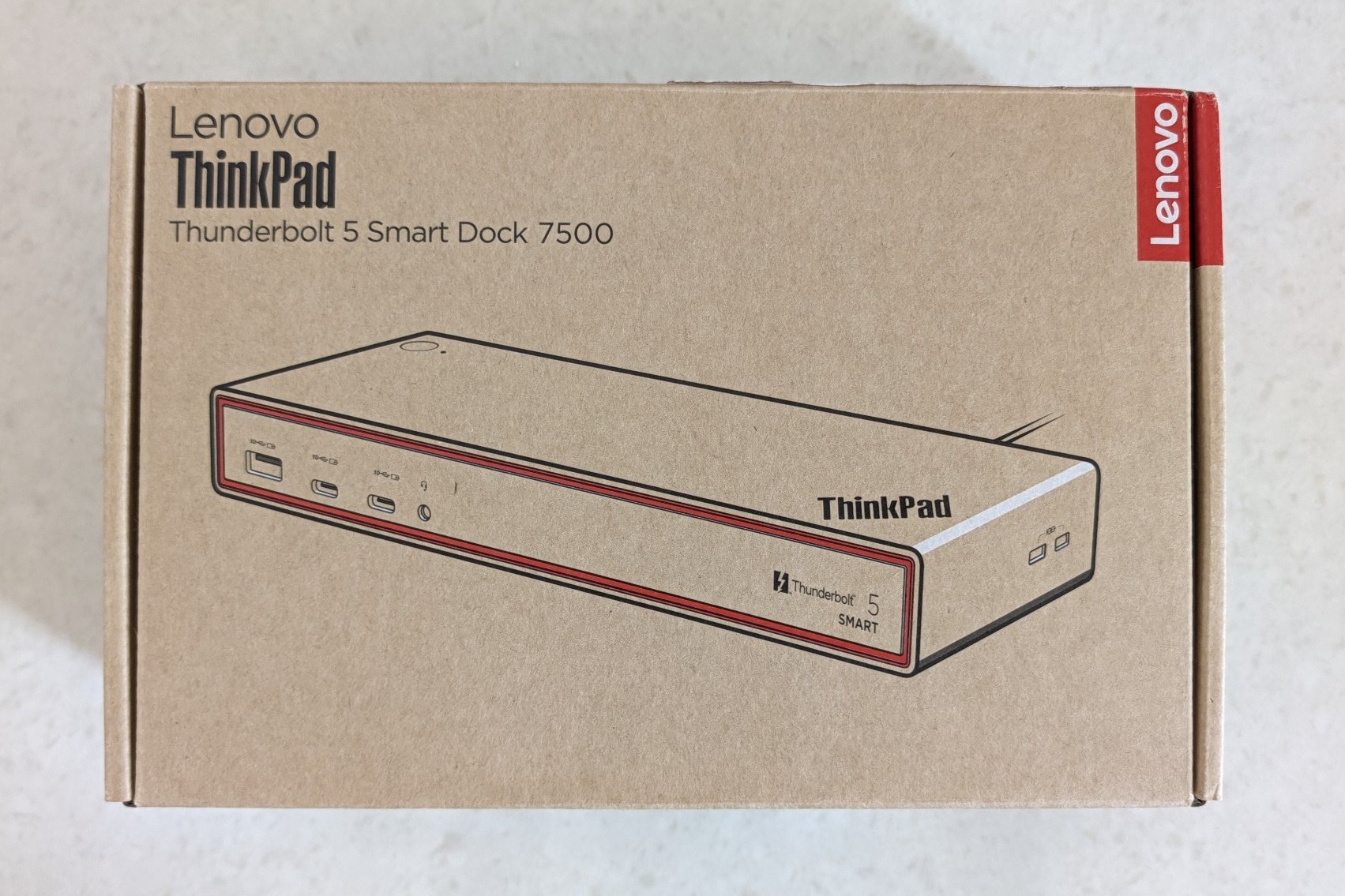
In my Thunderbolt 4 dock buyer's guide, I said I was planning to go with Lenovo's ThinkPad Thunderbolt 4 Smart Dock Gen 2 7500. I also said I was still weighing the Thunderbolt 5 version.
In the end, I bought the Lenovo ThinkPad Thunderbolt 5 Smart Dock 7500 (part number 40BA0265IN). It has been on my desk with my Dell laptop for over a week now. This post covers why I changed my mind, what has worked, what needed fixing, and what it took to get the warranty registered in India.
Why Thunderbolt 5 After All
My guide argued that Thunderbolt 4 was enough for me, and for today, that is still true. My laptop has Thunderbolt 4, so the dock runs at Thunderbolt 4 speeds, and my laptop does not need more than 100W of charging.
What changed was how long I want this dock to last. I plan to keep it for the next four to seven years. If I bought a Thunderbolt 4 dock now and my next laptop needed more power or bandwidth in three years, I would be buying another dock, and this whole exercise would have been pointless.
Two things tipped it:
- 180W charging. Lenovo says the dock "supports up to 180W PD 3.1 charging power". Lenovo's Thunderbolt 4 dock tops out at 100W. More than 100W adds nothing for my current laptop, but it leaves room for a more powerful laptop later.
- Two downstream Thunderbolt 5 ports, plus DisplayPort 2.1 outputs, for whatever displays or storage I use next.
The trade-offs are real. It costs more: when I checked Lenovo India's store in October, during its sale, it listed this dock at ₹35,184 (MRP ₹43,825) and the Thunderbolt 4 dock at ₹22,415 (MRP ₹41,500). It also has three USB-A ports instead of four, which is the same missing USB-A port that made me cancel the HP dock in the first place. All three are 10Gbps, so I can live with it.
What's in the Box

According to Lenovo India's listing, the box contains:
- The Thunderbolt 5 Smart Dock "with integrated 1 m Thunderbolt 5 cable"
- A 265W power adapter and a power cable
- A Lenovo Accessories Fleet Manager flyer, a setup poster and a warranty poster
My unit came with an Indian three-pin power cord.
The power adapter is huge, and it connects to the dock with a USB-C plug rather than a barrel connector. The plug has a keyed housing, and the dock has a slider next to the power port that locks it in place, so it can't be pulled out by accident.
Every port on the dock uses a standard connector: USB-A, USB-C, Thunderbolt, HDMI, DisplayPort and Ethernet. Even the power input is USB-C rather than a barrel connector, although at 265W, Lenovo's adapter goes beyond what standard USB-C chargers deliver, so I'd stick with the one in the box.
Ports and Specs

These are taken from Lenovo India's product page:
| Lenovo's spec | |
|---|---|
| Laptop charging | Up to 180W (PD 3.1), from a 265W adapter |
| Bandwidth | "up to 80 Gbps in standard mode or 120 Gbps in Bandwidth Boost mode" |
| Front ports | 1 × USB-A 3.2 Gen 2 (10Gbps), 2 × USB-C (10Gbps data) |
| Rear ports | 2 × USB-A 3.2 Gen 2 (10Gbps), 2 × Thunderbolt 5, 1 × HDMI 2.1, 2 × DisplayPort 2.1, 2.5GbE Ethernet |
| Audio | 3.5 mm audio jack (on the front of my unit) |
| Displays | "3 x 8K@60 Hz + 1 x 4K@60 Hz or 2 x 4K@240 Hz + 2 x 4K@120 Hz" |
| Maximum external monitors | 4 |
| Size and weight | 235 × 80 × 30 mm, 585 g with cable |
| Security slots | Kensington Nano Lock and Micro Lock |
| Warranty | 3 years |
Those display and bandwidth figures assume a Thunderbolt 5 laptop. On my Thunderbolt 4 laptop, the dock works at Thunderbolt 4 speeds, which is plenty for my dual monitor setup.
The Host Cable Really Is Replaceable
This was the requirement that ruled out most docks in my guide. Lenovo calls the cable "integrated", which sounds permanent, but it isn't.
Under the dock, the host cable sits in a recess, held in place by a cover with two screws. Here is how it comes out:
- Remove the two cover screws and lift the cover off.
- Unplug the cable. It is a regular Thunderbolt 5 cable, marked with the Thunderbolt symbol and a "5", in a standard USB-C socket.
- To refit it, reverse the steps.
Two things to watch for if you ever replace it:
- Leave the screw in the middle of the recess alone. It is a separate screw that holds the recess itself, not the cover. Only the two cover screws need to come out.
- The recess is narrow. Lenovo's cable has a slim plug that fits between the guide rails. A replacement with a bulkier plug might not fit under the cover. Look for a Thunderbolt 5 cable rated for 240W, so it can carry the full 180W, with a slim plug. I haven't tested a third-party cable yet.
Not every cable will fit, but this is still far better than a captive cable, where a damaged cable can mean replacing the whole dock.
This isn't unique to Lenovo, though. HP's Thunderbolt 4 100W G6 dock also has its cable plugged into a recess under a removable cover, as HP's own support video shows at about the one-minute mark. HP's cover appears to come off without tools, while Lenovo's needs a screwdriver. The Dell docks I compared in my guide all use captive cables.
Living With It
Charging
Charging has worked great with my Dell laptop, and the slow-charger warning I lived with on the Lionwei is gone. After three years of charging the laptop separately because my old Lionwei dock couldn't deliver enough power, one cable for everything is the upgrade I notice most.
On my Dell laptop, I plug the dock into the port marked with both the charging and Thunderbolt symbols.
Lenovo lists MAC address pass-through and Wake on LAN as features exclusive to ThinkPads. It doesn't say in writing whether non-Lenovo laptops get the full 180W. My laptop takes less than that anyway, so I can't confirm it.
Displays
On the Lionwei, I had capped my monitors at a lower refresh rate to reduce disconnects. On the Lenovo, I'm running both at a higher refresh rate from my Dell laptop, and in over a week of use, I haven't had a single disconnect, including after sleep and restarts.
Everything also feels more responsive, but I suspect that's mostly the higher refresh rate rather than the dock: the screen updates more often, so movement reaches it sooner. A keyboard or mouse on any USB hub adds well under a millisecond, far too little to feel.
One tip: one of my monitors is on the dock's HDMI port, where Windows only offers it up to a certain refresh rate. That limit usually comes from the monitor's HDMI input, not the dock, since many monitors only reach their highest refresh rate over DisplayPort. If you have high-refresh monitors, use the dock's DisplayPort outputs.
I didn't need to install any software for the dock to work. Lenovo's spec page says a driver is needed, but Windows handled everything on my Dell laptop.
Ethernet: Two Different Chips
This surprised me. On my Dell laptop, connected over Thunderbolt, the dock's Ethernet uses an Intel I226 controller, and Windows installed the driver itself. Speeds have looked fine.
I also connected the dock to my desktop's plain USB-C port, which doesn't support Thunderbolt. There, Device Manager lists the Ethernet adapter as "Realtek USB 2.5GbE Family Controller". The "USB" in the name means it is a USB Ethernet adapter, so the dock appears to switch to a different Ethernet chip when it has no Thunderbolt connection. Again, I didn't have to install a driver manually: Windows installed it automatically.
Lenovo's support page lists two USB LAN driver packages, plus an "Intel PCIe LAN Driver" for the Thunderbolt connection. The USB package for the dock's 2.5G Ethernet chip is version 1156.21.1009.2025, the same version Windows installed on my desktop by itself. So on Windows 11, unless your dock's Ethernet isn't detected at all, there's nothing extra to install.
One glitch: one day, the desktop's wired connection through the dock dropped to about half my normal speed, while Wi-Fi still ran at full speed. Restarting the desktop alone didn't fix it, and neither did restarting the dock alone. Only turning both off together brought it back to full speed. It hasn't happened again.
Updating the Firmware
Lenovo's Dock Update Utility, on the dock's support page, updated my unit to firmware 1.2.99. Two things worth knowing:
- It needs a Thunderbolt connection. On my desktop's plain USB-C port, the update failed with Return Code 11. Over Thunderbolt on the laptop, it worked.
- In the standard mode, the update doesn't finish straight away. The utility transfers the firmware, then the dock applies it 30 seconds after you disconnect it from the PC. Direct Mode applies it immediately.
The Power Button, Wake on AC and BitLocker
As I warned in my guide, the dock's power button doesn't turn on my Dell laptop. Dock power buttons generally only work with laptops from the same brand.
The workaround I mentioned in the guide, the Wake on AC setting in the Dell BIOS, does work through this dock. When the dock powers up, the laptop turns on.
Then I hit a problem I didn't expect. With the lid closed, the laptop turned on, my keyboard and mouse lit up, but both monitors stayed blank. When I opened the lid, the laptop was sitting on the Dell logo, waiting for my BitLocker PIN.
With my old USB-C dock, the BitLocker prompt appeared on my monitors. The difference is how the video travels. A USB-C dock gets video straight from the laptop's graphics. A Thunderbolt dock carries video inside the Thunderbolt connection, which the BIOS has to set up itself before Windows starts.
The fix was in the Dell BIOS: turning on the Thunderbolt boot support and Thunderbolt pre-boot options. The exact names vary between Dell models, but look in the BIOS's Thunderbolt settings, often under Integrated Devices. After that, the BitLocker prompt appears on my monitors and I can type the PIN on my desk keyboard, with the lid closed.
So, Wake on AC turns the laptop on, and the pre-boot setting lets me unlock it from my desk. The only thing that still doesn't work is the dock's power button.
Getting the Warranty Registered in India
The dock carries a 3-year warranty. Getting Lenovo's records to reflect that took about eight days.
After delivery, Lenovo's warranty lookup showed my dock as valid only in China, even though I bought it from Lenovo's own Indian store and it is the India model.
- 15 October: I raised a case on Lenovo's support portal. It was rejected the same day: "We found your machine is out of india, is different from that in the invoice. Could you please kindly provide us the machine bottom photo with SN for further confirmation?" The reply came from a no-reply address, and the portal showed the case as closed with no way to reply or upload the photo it asked for.
- 16 October: I called Lenovo support, and was told the update would be done within 24 hours. The follow-up email after that call included a three-level escalation matrix. I sent the invoice they asked for the same day, and was later told, "We will check and update on 19/10/2026."
- 19 October: A new case was created.
- 21 October: Lenovo's registration team replied: "According to our policy, the serial number must be mentioned on the invoice copy so that we can ensure the accuracy of warranty update. Please kindly provide us the serial number on the invoice copy or you write down the serial number on the invoice." The invoice from Lenovo's own store has no serial number on it, so Lenovo's policy required something Lenovo's own store doesn't provide.
- 22 October: I followed up on the email thread, pointing out that Lenovo's own store dispatch records should already link the serial number to my order.
- 23 October: The warranty was updated: 3 years, active until 12 October 2029, with India as the ship-to location.
Along the way, a Lenovo chat agent told me the 3-year warranty applied only to purchases during the festive offer. Lenovo India's product page lists "Warranty Period: 3 Year", and that is what my unit got.
If you buy a Lenovo dock in India, even from Lenovo's own store:
- Check the warranty lookup on the day it arrives. Look at the country, the start date and the warranty length.
- Photograph the box label and the label under the dock. Between them, they show the model number and serial number, which the invoice may not.
- Keep every email. Dates and quoted promises make escalation much easier.
Closing the Loop on HP
In my guide, I mentioned that the HP dock I had ordered shipped before my cancellation went through. HP took it back as a return, and the full refund of ₹23,499.05 reached my account on 16 October, well within the 15 to 20 business days HP quoted.
Verdict
What I like:
- The host cable is genuinely replaceable.
- 180W of charging, two Thunderbolt 5 ports and DisplayPort 2.1 should keep it useful for years.
- Every USB port runs at 10Gbps, plus 2.5GbE Ethernet.
- It works with my Dell laptop without any Lenovo software.
- The power plug locks in place.
What I don't:
- It costs much more than the Thunderbolt 4 version, and my Thunderbolt 4 laptop can't use the extra bandwidth yet.
- It has one fewer USB-A port than the Thunderbolt 4 dock.
- The power button won't turn on a non-Lenovo laptop.
- Lid-closed start-up with BitLocker needed a BIOS change.
- The 265W power adapter is huge.
- Registering the warranty in India took eight days and several rounds with support.
Would I buy it again? Honestly, I would probably go for the Thunderbolt 4 dock and save more than ₹10,000. I don't regret buying this one, because the dock is great. It just isn't being used to its full potential with my current laptop.
So if your laptop is Thunderbolt 4, the Thunderbolt 4 dock from my guide is the better value today.
Needing more than 100W doesn't have to mean Thunderbolt 5, either. Lenovo's Thunderbolt 4 dock stops at 100W, but HP's Thunderbolt 4 Ultra 180W G6, which I covered in my guide, is rated at 180W. HP also sells a Thunderbolt 4 Ultra 280W G6, which adds a barrel power connector alongside the Thunderbolt cable. In my case, the extra wattage simply wasn't available in Lenovo's Thunderbolt 4 dock.
The Thunderbolt 5 dock makes sense if you already have a Thunderbolt 5 laptop, or are sure your next laptop will use the extra bandwidth.
What dock are you running, and did you go Thunderbolt 4 or 5? Let us know in the comments below!
Sources & References
- Let's Talk Gizmo: I Almost Bought the Wrong Docking Station: A Thunderbolt 4 Dock Buyer's Guide for India
- Lenovo India: ThinkPad Thunderbolt 5 Smart Dock 7500 (accessed October 16, 2026)
- Lenovo Support: ThinkPad Thunderbolt 5 Smart Dock 7500 (accessed October 16, 2026)
- HP Store India: HP Thunderbolt 4 Ultra 180W G6 Dock (accessed October 10, 2026)
- HP ValueHub: HP Thunderbolt 4 Ultra 280W G6 (accessed October 24, 2026)
- HP Support (YouTube): Removing and replacing parts | HP Thunderbolt 4 100W G6 Dock | HP Support (cable shown with its cover removed at around 1:03)
More from the desk
Apple's M6 MacBook Pro Starts at $1,999 With Up to 30% Faster Graphics Than M5
Apple's $1,999 14-inch M6 MacBook Pro has a 12-core CPU and a 12-core GPU, with preorders October 28 and store availability November 6.
AMD Brings FSR 4.1 to Radeon RX 6000 Cards Months Ahead of Schedule
AMD's Adrenalin 26.10.1 adds FSR 4.1 upscaling to Radeon RX 6000 desktop GPUs and select Ryzen systems, while handheld updates depend on manufacturers and Xbox support is coming soon.

Your Work Email Could Save You 10% or More: What Corporate Employee Discounts in India Really Are
Corporate employee stores sound like they are for companies buying in bulk. They aren't. They are personal purchases at a discount, unlocked with your work email. Here is what they are, how much I saved, and why it pays to talk to the sales team too.